Create a file
Open Files, choose New, then click the title area and start writing.
 🔰Freewriter 3AMHelp centre
Learn the app in a few minutes, or jump directly to the feature you need. Your writing stays in your browser unless you choose CloudSync.
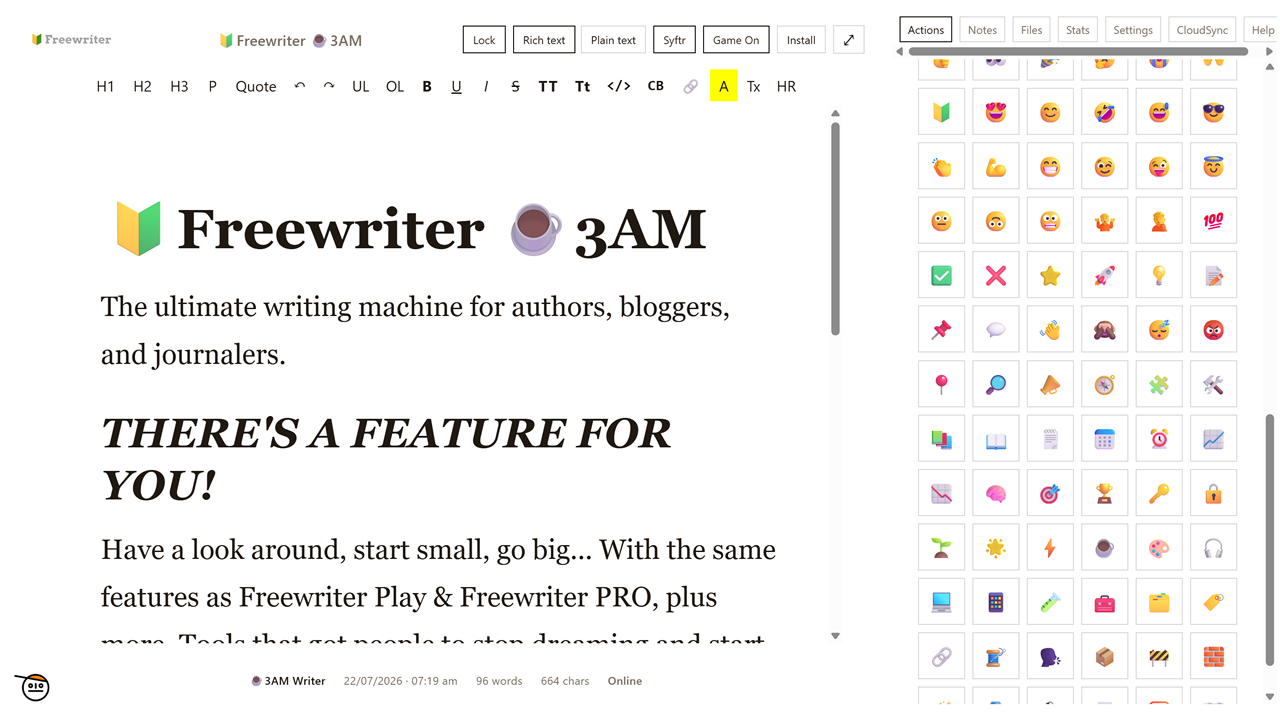
Open Files, choose New, then click the title area and start writing.
3AM saves automatically. Watch for Saving… and Saved near the document title.
Use Notes for research, reminders and outlines. Note words never advance your writing goal.
In Settings → Data, download a backup regularly—especially before importing or replacing a cloud copy.
The main editor is the centre of 3AM. The top tools control the current file and writing session.
Syftr opens a second writing area beside the main editor. Choose another file or note for either side. It is useful when rewriting, comparing drafts, or checking research while you write.
Lock stops accidental changes to the current file. Choose Lock again when you are ready to edit. Locking is not password protection; use Privacy Mode when you need to hide the app.
When your browser offers it, choose Install to add 3AM Writer like an app on your device. The main writing tools work offline after they have been loaded. CloudSync waits until you are online again.
Files hold your main writing. They can stand alone or become books with nested chapters.
Move work through Idea, Research / Outline, Draft, Edit, Format, Visuals, Ready, Published and Update / Revise. Stage colours fill file cards; Idea uses off-white.
Colour tags are separate from stages. Name the ten colours at the bottom of Files or Notes. In Files, a tag changes only the left border so the workflow colour remains visible.
Export all documents, all documents with notes, or all notes as PDF or Doc. Every file and note begins on a separate page. Printable exports use 🔰Freewriter branding by default. You can remove it in Settings.
Notes are for everything useful around the draft: research, outlines, scene fragments and reminders.
Export the current file as Text, Doc, PDF, HTML or Markdown; print it; copy it; or prepare it for email. Attached notes, when included, start on separate pages.
Choose a duration, then Start or Reset. The large blue clock shows the remaining session time.
Build reusable author, biography, website and date information for text-based exports. Copy Footer sends the composed footer to your clipboard.
Copy common special characters and emojis. The Unicode Characters button opens a larger external reference.
Import adds text from a file. Append adds imported text to the current document instead of replacing it. Save As makes a separate copy of the current file.
Stats turn your writing activity into a compact dashboard without counting note text as document progress.
Current document and book words, goal progress, writing averages, best day, game results, typing time, session time and overall activity.
Yes. Drag cards to reorder them, collapse sections you do not need, or reset an individual section from its card. Resets ask for confirmation.
Set text size and font, rich/plain mode, smart punctuation, sentence capitalisation, letterbox mode and the space-themed game appearance.
Choose words or pages and set the target. Goals count only words typed into documents today—not pasted words or notes.
Protect the app with a four-digit PIN. Strict mode can lock when changing tabs or screens. Keep a backup; a forgotten PIN is not a recovery method.
Backup downloads the whole state. Restore imports it. Legacy import brings compatible writing from older Freewriter versions.
CloudSync is optional. Local saving works without an account or subscription.
When enabled, CloudSync uploads your writing after it is saved in the browser. Only one device can sync at a time. The app checks for different browser and cloud copies before replacing anything.
Automatic sync pauses. The app shows the file and word totals for the browser and cloud copies, then offers: Keep browser copy, Use cloud copy, or Download cloud backup. Nothing is silently replaced.
Download both the browser backup and cloud backup. Compare them, then choose the copy you intend to keep.
Your writing is saved in two storage areas inside your browser for extra protection.
Open a file’s menu → History to restore an earlier saved version.
Restore deleted files and notes from Settings. The newest 100 deleted items are retained.
When CloudSync is off, download a backup to protect your writing if browser data is cleared or your device is lost.
Use Tab and Shift + Tab to move through controls. Use Enter or Space to activate buttons and Esc to close dialogs and item menus.
Save, network and sync warnings are read aloud by screen readers. Pop-up windows have clear names and return you to the previous control when closed. If your device uses reduced motion, extra movement is turned off.
Use the visible grab handle. Pointer sorting works across mouse, touch and pen input; the writing text itself is not the drag target.
Reload the app so the latest PDF exporter is active, then retry. Ensure the PDF library is not blocked by a network or content-blocking extension.
Scroll inside the open panel or menu. On a small screen, close other accordions to create more room.
Start the drag on the handle—not the title, checkbox or menu. Move over the target and release. Dropping on its right side nests where nesting is supported.
The goal starts again each day and counts words typed into documents that day. Notes and pasted text do not count.
Close 3AM Writer on the other device or wait about a minute. Avoid editing on both devices at once, and download backups before choosing which copy to keep.
Visit support and describe what you were doing, your device/browser, and any visible error message.